Test Every Editor's Features
Document
Document (ignore, tiptap things)
StarterKit
Paragraph - nodes
The Paragraph extension is not required, but it’s very likely you want to use it. It’s needed to write paragraphs of text
And of course Text is setup as well
Bold, Italic, Strike, Link, Underline, Code - marks
This is bold text
Italic Text
Strike Text
and Underline text
code
Dropcursor, Gapcursor, Undo/Redo, ListKeymap, TrailingNode - Extensions
we have these extensions loaded as well
ListKit
this is a bullet list
this is a nested list for bullet
even nester
another bullet list
Below me is number list
This is number list
nested for number list
even nester
no2 in the list
Below me is task list
Todo list task 1
Todo list task 2
Todo list but checked
This lis is two lines - should be good in rendered in two line boo yeah two lines
Columns or Multi-columns
checkout the layout text below
I’m on left position
you can add list on left
test list
I’m at right position
and another list on the right
cool?
probably yeah
col 1 with bigger spaces
col 2
Indent Handler
How this is indented was by pressing "Tab" and then I type this text
This is how it looked if I didn't press tab when start typing. Tab(indent) is act as adding 4 spaces
Selection
Try to select this text in the block quote "SELECT ME". Notice the color of selection is customized
Heading Extension
Top is heading 1
Heading 2
top is heading 2
Heading 3
top of me is heading 3
top is heading 3
Notice that we can toggle expand under the heading with the chevron besides the heading text
Horizontal Rule - nodes
Below is horizontal rule
Top of me is horizontal rule
Code Block
I'm about to type ``` then press enter
const a = () => {
    console.log("hello");
}
it will automatically convert it to codeblock. This is a code mark code . you should see a code block on top of this paragraph
Typography
common text patterns with the correct typographic character
emDash | Converts double dashes | — |
ellipsis | Converts three dots | … |
openDoubleQuote |
| “smart” quote |
closeDoubleQuote | “Smart | |
openSingleQuote |
| |
closeSingleQuote | ‘Smart | |
leftArrow | Converts | ← |
rightArrow | Converts | → |
copyright | Converts | © |
registeredTrademark | Converts | ® |
trademark | Converts | ™ |
servicemark | Converts | ℠ |
oneHalf | Converts | ½ |
oneQuarter | Converts | ¼ |
threeQuarters | Converts | ¾ |
plusMinus | Converts | ± |
notEqual | Converts | ≠ |
laquo | Converts | « |
raquo | Converts | » |
multiplication | Converts | 2×3 |
superscriptTwo | Converts | ² |
superscriptThree | Converts | ³ |
Text Style
red serif - smaller font size
blue serif - small font size
green serif red serif - medium font size, times new roman
plain blue plain green green serif plain - large font size
blue green green serif blue serif
strong strong blue strong blue serif strong green strong green serif
Highlight
the text inside the quote is highlighted in red "Hey, I'm important"
we can also highlight in different color "I'm highlighted with purple color"
we also have certain color which support our light/dark color
"my highlighted color is great even when changed from dark to light theme"
Link
Link 1: https://linear.app/
text wrapped in link: Exams
you should see the linked text above being highlighted.
for instance, you can also copy a link to the clipboard, select any text and press Ctrl+v and it will make it as a link
CharacterCount
we can detect how many texts or character is on the editor. we can use something like this to calculate it
Table of Content
on note page, you must see a table of content on the right side of the screen floating. when you hover on it, it should expand. when you click the title, it should scroll into view to the clicked node
Image Block & Image Upload
on top of me is image upload. you can press Upload an image and select the image from the PC

ImageBlock has a couple of commands to set image into editor
const setImageBlock: attrs => {...}

const setImageBlockAt: attrs => {...}

const setImageBlockAlign: align => {...}

const setImageBlockWidth: width => {...}
Emoji
These 😃 are 🔥 some 😺 emojis 🤯 rendered 👻 as 💆 inline ✌ nodes.
Type : to open the autocomplete. 😙
And unsupported emojis (without a fallback image) are rendered as just the shortcode :this_does_not_exist:
In code blocks all emojis are rendered as plain text. 👩💻👨💻There is also support for emoticons. Try typing <3.
Text Align
we have text align. by default it's left
but we can also set it right. you must see this paragraph right align
we also support justify alignment. Lorem Ipsum is simply dummy text of the printing and typesetting industry. Lorem Ipsum has been the industry's standard dummy text ever since the 1500s, when an unknown printer took a galley of type and scrambled it to make a type specimen book. It has survived not only five centuries, but also the leap into electronic typesetting, remaining essentially unchanged. It was popularised in the 1960s with the release of Letraset sheets containing Lorem Ipsum passages, and more recently with desktop publishing software like Aldus PageMaker including versions of Lorem Ipsum.
you must see paragraph above in justify alignment
and this paragraph is in center alignment
Subscript and Superscript
this is subscript and this is superscript . you must see the text "subscript" and "superscript" in the respective text type style
Table
Table example is below
Month | Savings |
|---|---|
January | $250 |
February | $80 |
March | $420 |
you should see table on top of me
Custom Placeholder
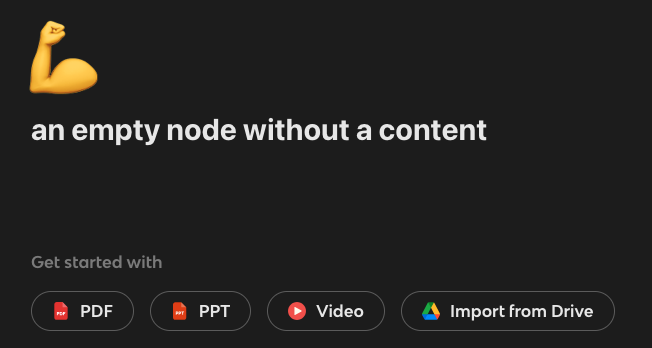
try to create a new note. and notice that, on new empty note, there’s a custom UI while the note is empty and editor is blurred. once you type a content or focus to editor, the placeholder disappear.
Placeholder
when a paragraph is empty, there will be a placeholder text encouraging to type something
try focusing on the gap above and you must see a placeholder text
Blockquote
A good man never read a tutorial
amazing right? yeahh!!…
Mathematics
you can insert a math expression which is a latex decoration which will render as latex like below:
cool? right? \operatorname{th}anks<3
Youtube
copy a youtube url and paste it in the editor, it will become like video below
Desmos
below me is a desmos graph calculator
On top of me there should be a Desmos calculator
AiInputMenuTrigger
When you press a “space” on an empty paragraph, it should toggle the editor to have an AI besides
try placing the cursor on the gap above and press space. it should trigger the AI on the right
GhostText
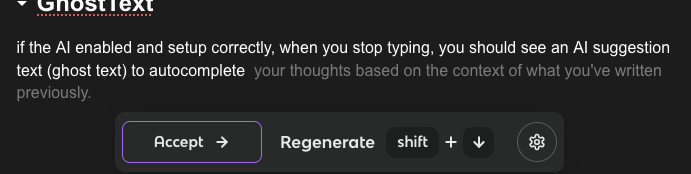
if the AI enabled and setup correctly, when you stop typing, you should see an AI suggestion text (ghost text) to autocomplete.
Slash Command
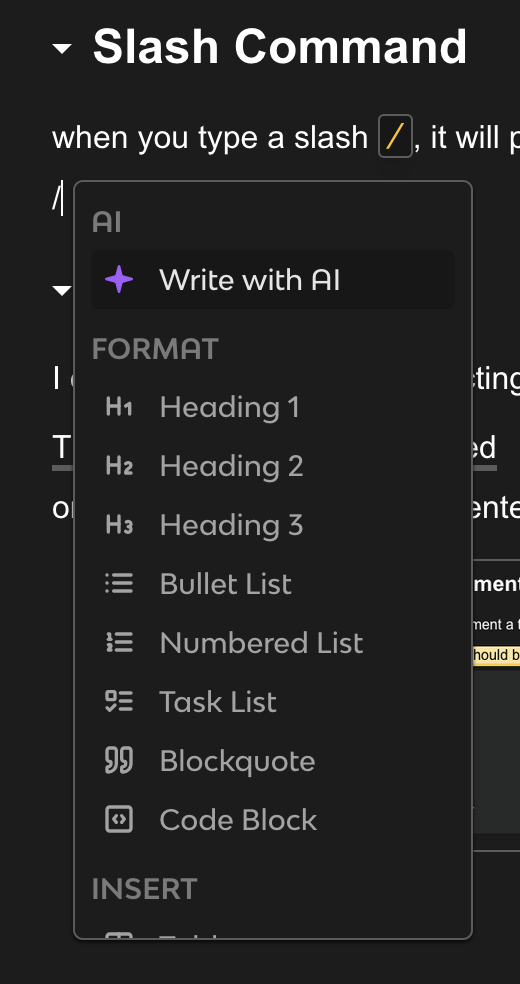
when you type a slash / on an empty paragraph, it will prompt you a popup to select an action
/
Comments
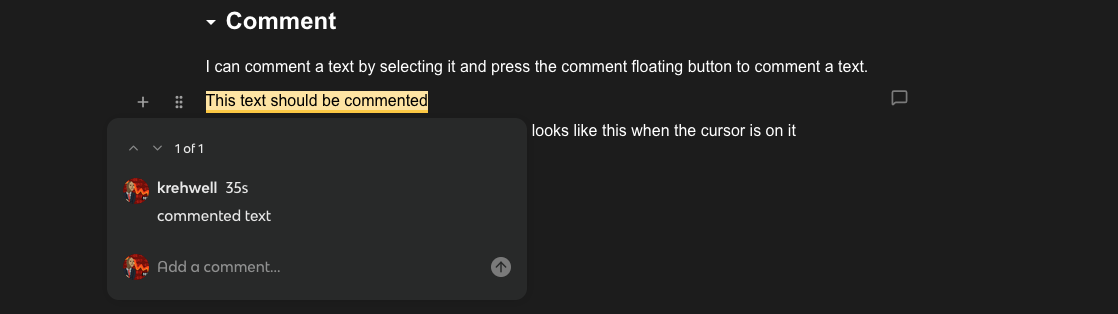
I can comment a text by selecting it and press the comment floating button to comment a text.
this text is commented
on Top of me there’s a commented text which looks like this when the cursor is on it